How to install IPTV on FireStick ?
1. We will first install the Downloader app
This app will help you sideload IPTV Smarter on FireStick (because browser downloads are not allowed)
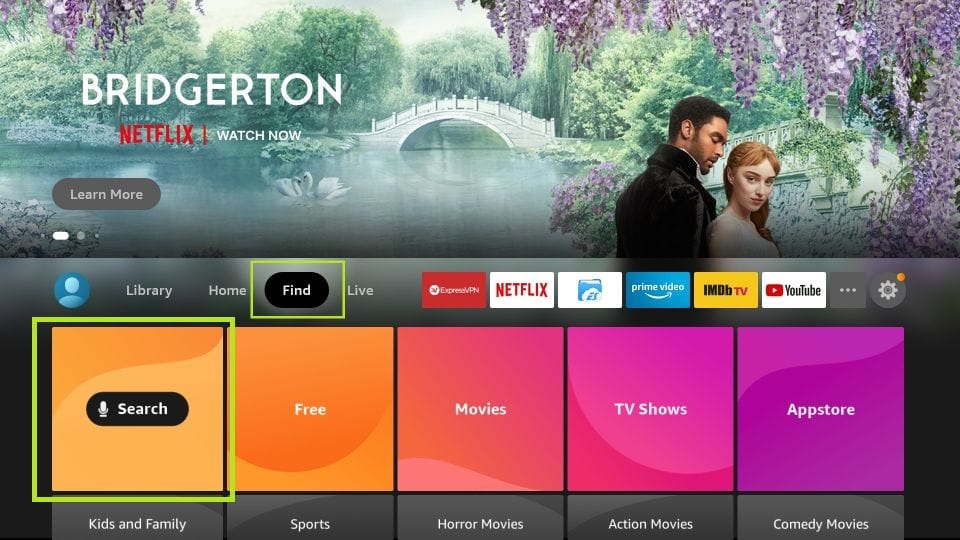
2. Click the Find > Search option on the home screen of FireStick
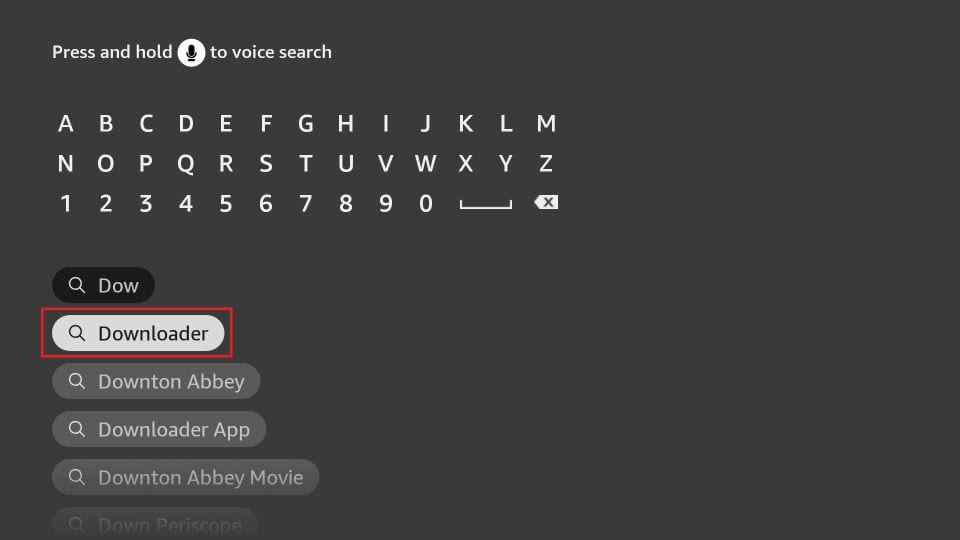
3. Type the name of the app (which is Downloader)
Click the Downloader option when it is displayed in the search results
Choose the Downloader icon on the following screen and download and install the app
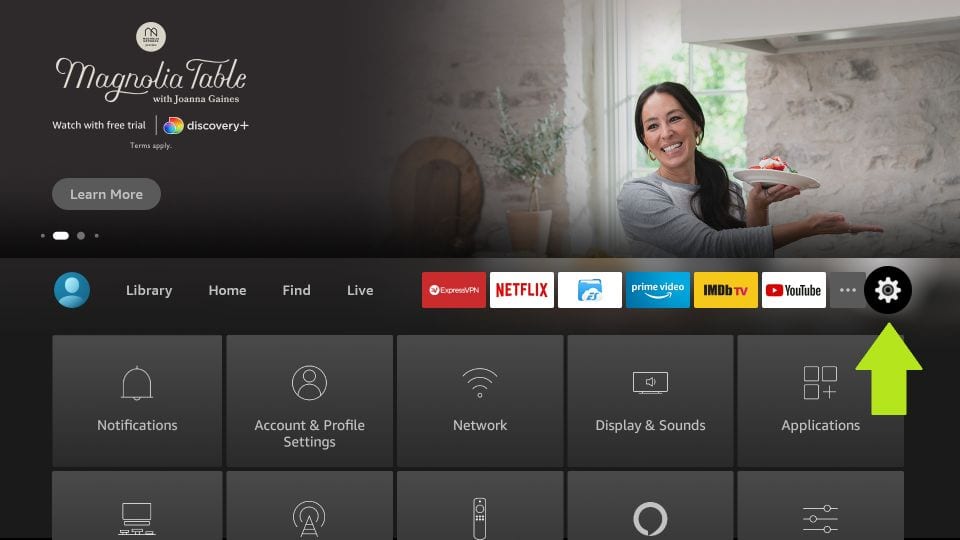
4. Get back to the home screen of FireStick after installing the Downloader app
In the menu bar, click Settings
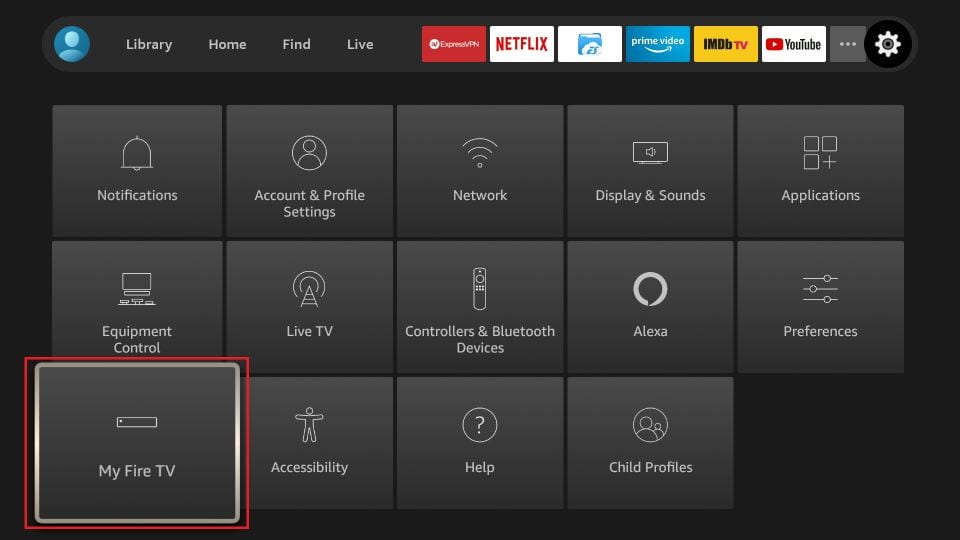
5. In the Settings, choose the option My Fire TV
6. When the following set of options are displayed on the next screen, click Developer Options
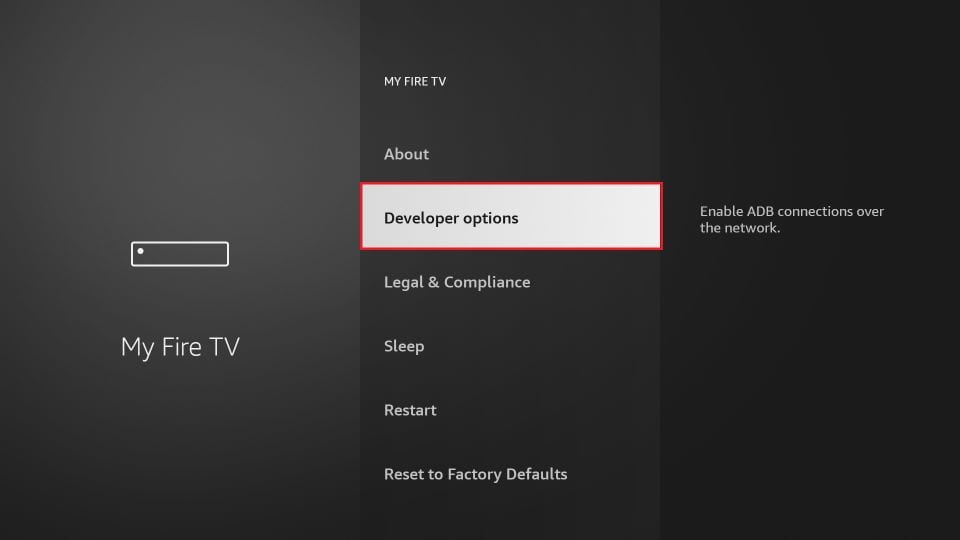
7. Click Install from unknown apps
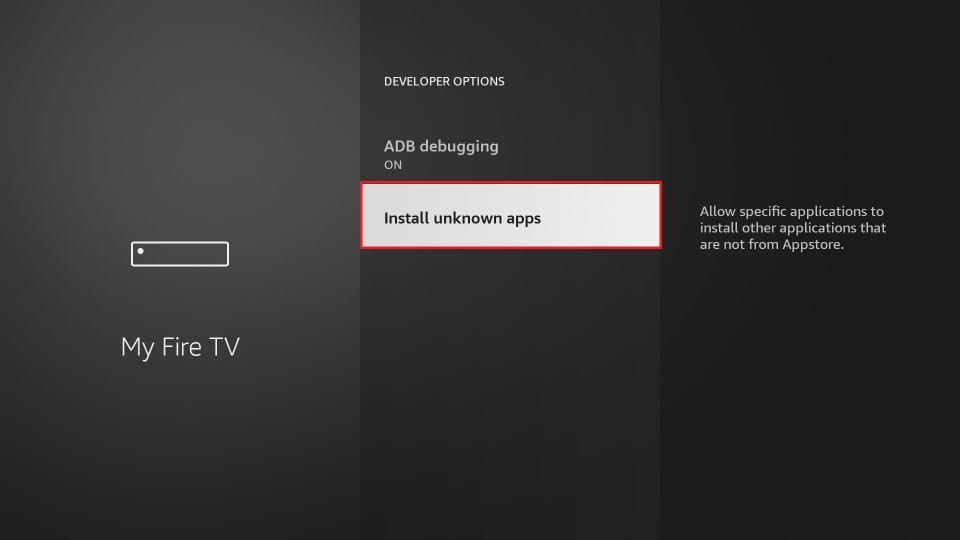
8. Click Downloader to change the status to ON
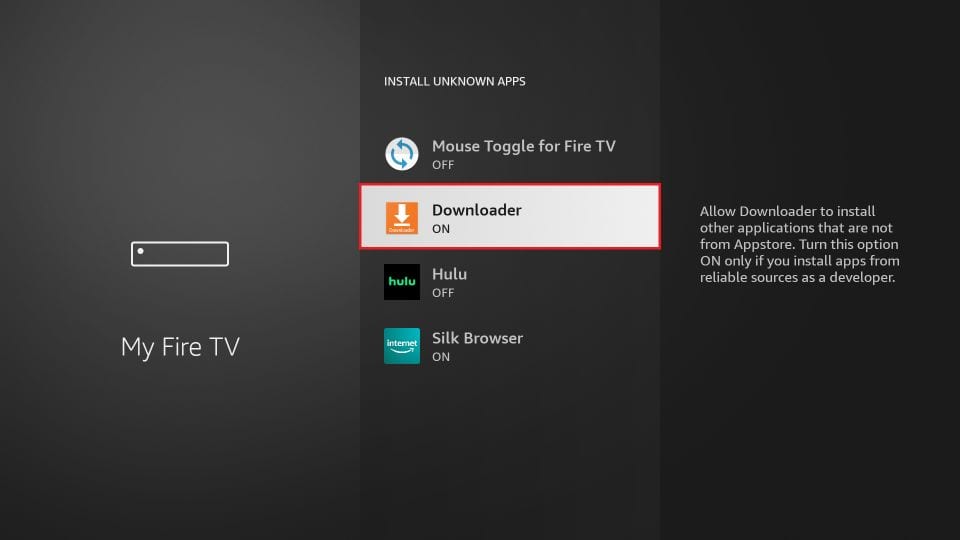
9. You may now open the Downloader app
When you run this app for the first time, a set of prompts will appear. Dismiss them until you see the following screen
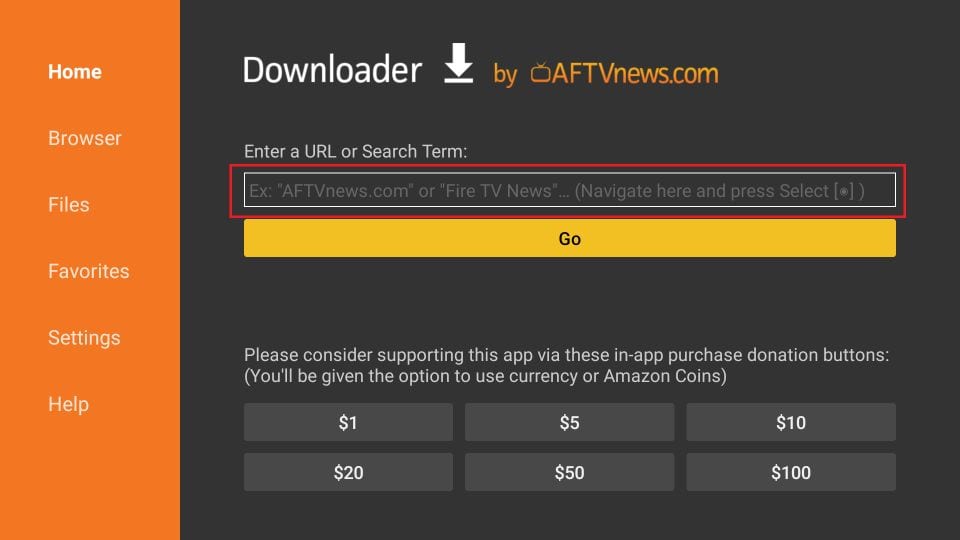
10. Go ahead and enter the following path on this window: https://www.firesticktricks.com/smarter
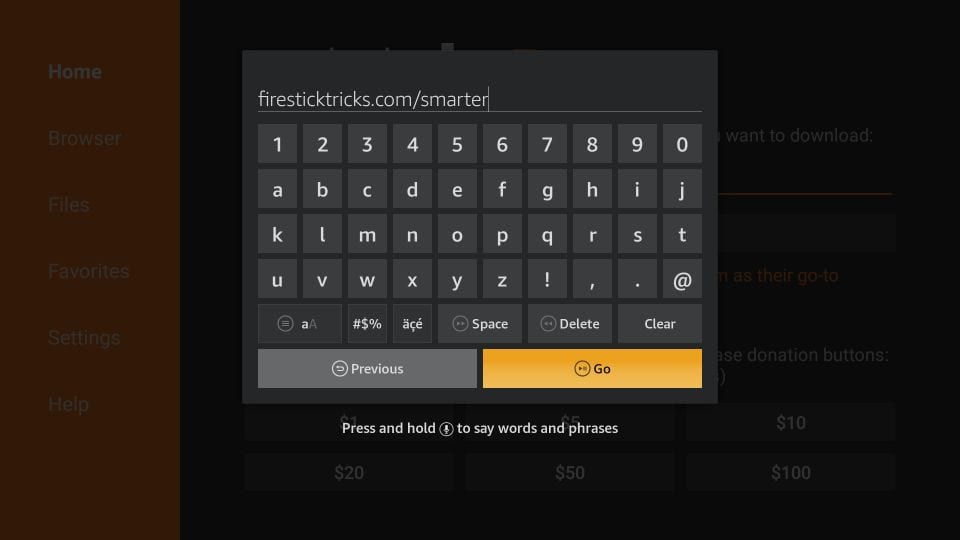
Click GO
11. Give it a minute or two until the IPTV Smarter is downloaded onto your FireStick device
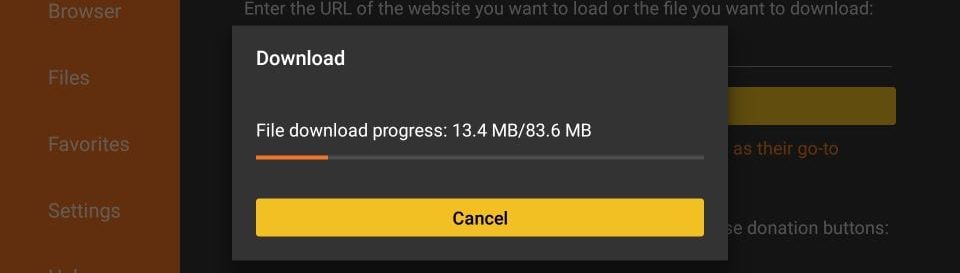
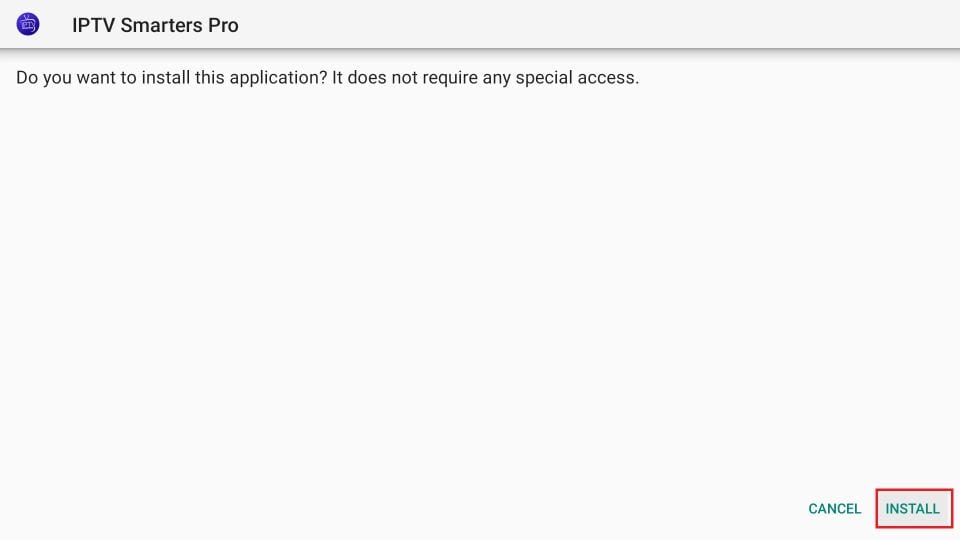
12. When the download has completed, the Downloader app will run the APK file and the installation will start
Now you can buy a list of channels ?
[wpforms id=”1436″]